Guide
Old Bird's controls explained with live captures from a running phone and current setup instructions.
Hover any highlighted control to read what it does. On a phone, tap instead.
Getting started
Old Bird turns a spare Android phone into a camera that serves video from the phone itself. There is no account to create and nothing to configure on our side.
- Install the app and open it. Grant camera access, and microphone access if you want sound.
- Tap Start beside Streaming server on the Cameras screen. The same master switch is also available as Streaming service in Settings.
- Open that address from any browser on the same network. Your browser will warn about the certificate — that is expected, and the reason is explained below.
- Enter the viewer credentials shown in Settings. The generated default username is
oldbird; you can replace both values.
About that certificate warning. Old Bird generates its own certificate on the phone, because no public authority will issue one for a private network address. The connection is still encrypted. Accept the warning once and your browser will remember it.
The browser viewer
This is what you get when you open the camera's address. Everything below the video is optional — you can watch a camera without touching any of it.
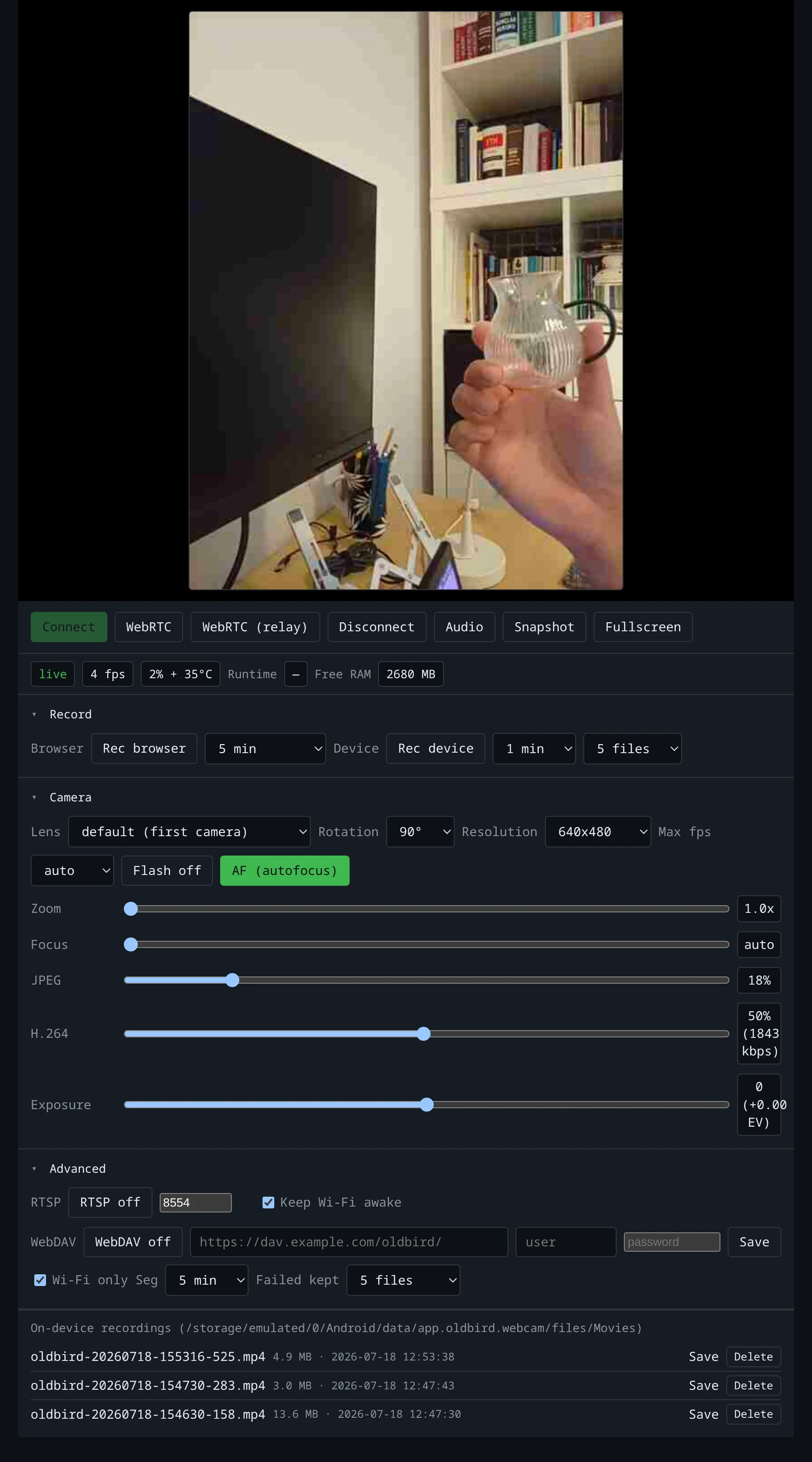 ConnectStarts the MJPEG stream over HTTPS. This is the compatible path — it works in every browser and survives flaky Wi-Fi, at the cost of about a second of latency.
WebRTCConnects using WebRTC instead, which brings latency under a second. Best on the same network; needs Pro for off-LAN viewing.
WebRTC (relay)Forces the connection through the TURN relay rather than going direct. A diagnostic: if this works and plain WebRTC does not, the problem is your network path, not the relay.
DisconnectStops the stream and releases the camera. The phone idle-closes the camera a few minutes later, which matters more than it sounds — see the note on battery below.
AudioToggles the microphone stream, 16 kHz mono PCM. Off by default. The mic only runs while something is listening and shuts down 30 seconds after the last listener leaves.
SnapshotSaves the current frame as a JPEG to your downloads. Captures what is on screen right now — no round trip to the phone.
FullscreenExpands just the video to fill the screen, hiding every control. Press Escape to come back.
Rec browserRecords in this browser tab. Chromium-based browsers produce WebM with audio; Firefox produces AVI without audio, because its recorder cannot read our canvas — a browser limitation, not a setting you can change.
Browser segment lengthHow often the browser recording is flushed to a file. Shorter segments lose less if the tab crashes.
Rec deviceRecords on the phone itself to MP4 segments, which keeps going even if you close this page. This is the one to use for unattended recording.
Device segment lengthLength of each MP4 file written on the phone.
Files keptHow many segments to keep before the oldest is deleted. This is a ring buffer, so storage use stays bounded.
Active lensThe current viewer promotes this selector directly below status with a green lens icon and human camera names. It lists top-level cameras and every physical wide, main, or telephoto sensor Android exposes inside a logical camera. A hint reports the number of selectable rear lenses; manufacturer-hidden modules cannot be selected by third-party apps.
RotationRotates the image in 90-degree steps, for when the phone is mounted sideways or upside down.
ResolutionCapture size. Higher costs more bandwidth, battery and heat — the usual reason a phone gets hot is resolution plus frame rate, not the app itself.
Max fpsUpper limit on frame rate. Lowering it is the single most effective way to cut battery drain and heat.
FlashTurns the LED on as a steady torch. It stays on until you turn it off, and it will warm the phone.
AF (autofocus)Returns to continuous autofocus after you have dragged the manual focus slider.
ZoomDigital zoom. It crops into the sensor rather than adding detail, so image quality drops as you go in.
FocusManual focus. Far left is infinity, far right is as close as the lens goes. Useful when autofocus keeps hunting on a fixed scene.
JPEG qualityCompression level for the MJPEG stream. Lower means smaller frames and less bandwidth, with more visible blocking.
H.264 qualityBitrate for recordings, RTSP and WebRTC — everything that goes through the hardware encoder. Does not affect the MJPEG preview.
ExposureExposure compensation in EV steps. Raise it for a backlit doorway, lower it if a bright window is blowing out the scene.
RTSPPublishes H.264 and AAC over RTSP so VLC, ffplay or an NVR can pull the stream. Note that our server speaks RTP over UDP only — VLC defaults to TCP and needs --rtsp-tcp=0.
RTSP portPort the RTSP server listens on. Changing it rebinds immediately, no restart.
Keep Wi-Fi awakeHolds a Wi-Fi lock so the stream does not stall when the screen turns off. Leave this on for any phone acting as a permanent camera.
WebDAVUploads finished MP4 segments to your own WebDAV server — a NAS, or anything speaking WebDAV. Free, and the footage never touches our infrastructure.
WebDAV URLDestination collection URL, for example https://nas.example.com/oldbird/.
WebDAV usernameUsername for Basic authentication against your server.
WebDAV passwordPassword for your WebDAV server. Stored on the phone, sent only to the URL above.
SaveApplies the URL, username and password. Nothing uploads until you save.
Wi-Fi onlyHolds uploads until the phone is on Wi-Fi, so segments never burn mobile data.
Upload segment lengthLength of each uploaded file. Shorter segments appear on your server sooner.
Failed uploads keptHow many failed uploads to keep on the phone for a retry before discarding them.
ConnectStarts the MJPEG stream over HTTPS. This is the compatible path — it works in every browser and survives flaky Wi-Fi, at the cost of about a second of latency.
WebRTCConnects using WebRTC instead, which brings latency under a second. Best on the same network; needs Pro for off-LAN viewing.
WebRTC (relay)Forces the connection through the TURN relay rather than going direct. A diagnostic: if this works and plain WebRTC does not, the problem is your network path, not the relay.
DisconnectStops the stream and releases the camera. The phone idle-closes the camera a few minutes later, which matters more than it sounds — see the note on battery below.
AudioToggles the microphone stream, 16 kHz mono PCM. Off by default. The mic only runs while something is listening and shuts down 30 seconds after the last listener leaves.
SnapshotSaves the current frame as a JPEG to your downloads. Captures what is on screen right now — no round trip to the phone.
FullscreenExpands just the video to fill the screen, hiding every control. Press Escape to come back.
Rec browserRecords in this browser tab. Chromium-based browsers produce WebM with audio; Firefox produces AVI without audio, because its recorder cannot read our canvas — a browser limitation, not a setting you can change.
Browser segment lengthHow often the browser recording is flushed to a file. Shorter segments lose less if the tab crashes.
Rec deviceRecords on the phone itself to MP4 segments, which keeps going even if you close this page. This is the one to use for unattended recording.
Device segment lengthLength of each MP4 file written on the phone.
Files keptHow many segments to keep before the oldest is deleted. This is a ring buffer, so storage use stays bounded.
Active lensThe current viewer promotes this selector directly below status with a green lens icon and human camera names. It lists top-level cameras and every physical wide, main, or telephoto sensor Android exposes inside a logical camera. A hint reports the number of selectable rear lenses; manufacturer-hidden modules cannot be selected by third-party apps.
RotationRotates the image in 90-degree steps, for when the phone is mounted sideways or upside down.
ResolutionCapture size. Higher costs more bandwidth, battery and heat — the usual reason a phone gets hot is resolution plus frame rate, not the app itself.
Max fpsUpper limit on frame rate. Lowering it is the single most effective way to cut battery drain and heat.
FlashTurns the LED on as a steady torch. It stays on until you turn it off, and it will warm the phone.
AF (autofocus)Returns to continuous autofocus after you have dragged the manual focus slider.
ZoomDigital zoom. It crops into the sensor rather than adding detail, so image quality drops as you go in.
FocusManual focus. Far left is infinity, far right is as close as the lens goes. Useful when autofocus keeps hunting on a fixed scene.
JPEG qualityCompression level for the MJPEG stream. Lower means smaller frames and less bandwidth, with more visible blocking.
H.264 qualityBitrate for recordings, RTSP and WebRTC — everything that goes through the hardware encoder. Does not affect the MJPEG preview.
ExposureExposure compensation in EV steps. Raise it for a backlit doorway, lower it if a bright window is blowing out the scene.
RTSPPublishes H.264 and AAC over RTSP so VLC, ffplay or an NVR can pull the stream. Note that our server speaks RTP over UDP only — VLC defaults to TCP and needs --rtsp-tcp=0.
RTSP portPort the RTSP server listens on. Changing it rebinds immediately, no restart.
Keep Wi-Fi awakeHolds a Wi-Fi lock so the stream does not stall when the screen turns off. Leave this on for any phone acting as a permanent camera.
WebDAVUploads finished MP4 segments to your own WebDAV server — a NAS, or anything speaking WebDAV. Free, and the footage never touches our infrastructure.
WebDAV URLDestination collection URL, for example https://nas.example.com/oldbird/.
WebDAV usernameUsername for Basic authentication against your server.
WebDAV passwordPassword for your WebDAV server. Stored on the phone, sent only to the URL above.
SaveApplies the URL, username and password. Nothing uploads until you save.
Wi-Fi onlyHolds uploads until the phone is on Wi-Fi, so segments never burn mobile data.
Upload segment lengthLength of each uploaded file. Shorter segments appear on your server sooner.
Failed uploads keptHow many failed uploads to keep on the phone for a retry before discarding them.
The browser viewer, with every section expanded. Hover any control.
Settings on the phone
The phone's own settings are the source of truth. Anything changed here applies immediately, without restarting the camera.
Access and service
Who may connect, and the master switch that makes the phone serve at all.
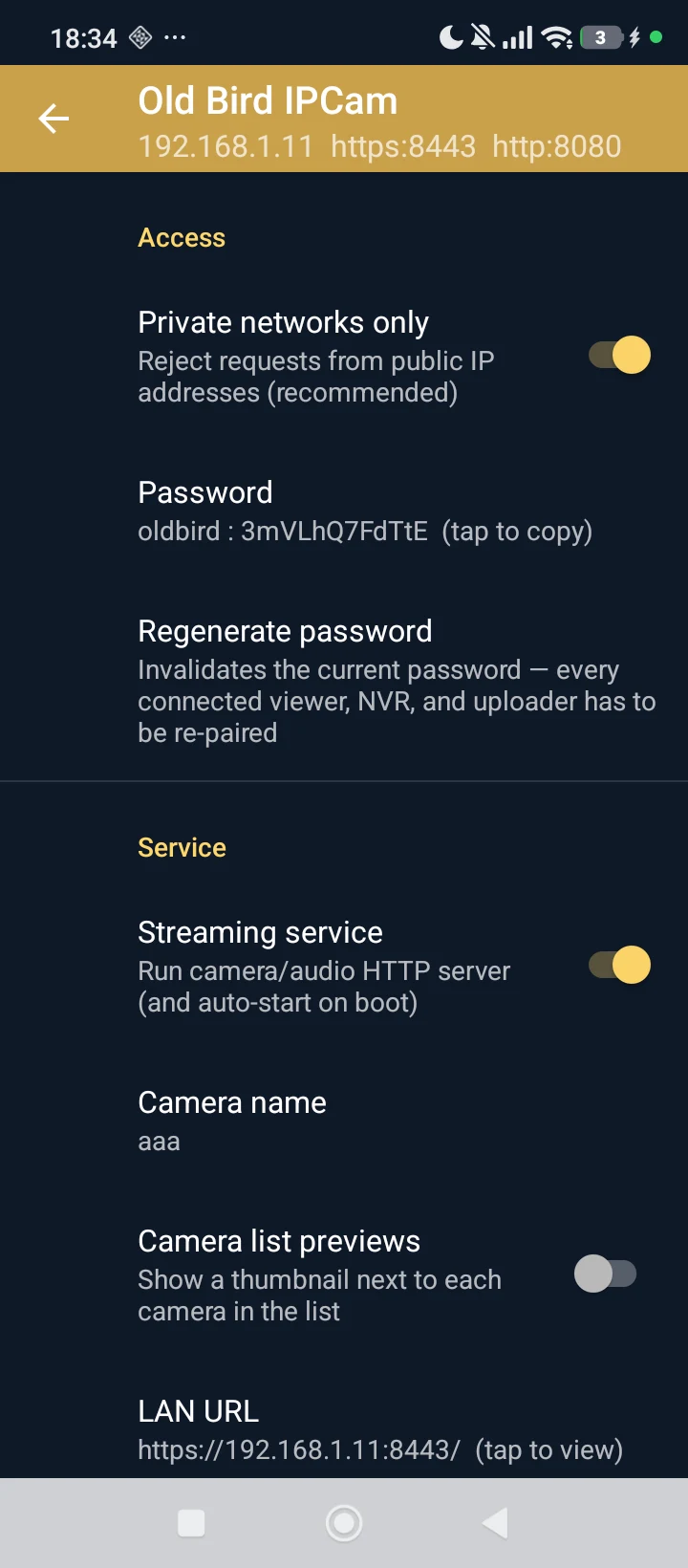 Private networks onlyRejects any request from a public IP address. On by default, and it is the main thing standing between your camera and the open internet. Leave it on.
Viewer credentialsThe HTTPS, RTSP and ONVIF username/password pair. Secure values are generated by default; you can now set both yourself.
Regenerate passwordIssues a new password and invalidates the old one. Everything already connected — browsers, NVRs, WebDAV — has to be re-paired afterwards.
Streaming serviceThe master switch, also available as Start/Stop on the Cameras main screen. Turning it on starts the camera server and makes it survive a reboot; turning it off stops the phone serving anything at all.
Camera nameA label for this phone, shown in the camera list and in the browser portal.
Camera list previewsShows a thumbnail beside each camera in the list. Costs a snapshot fetch per camera.
LAN URLThe address to open on your network. Tap it to view the camera directly.
Private networks onlyRejects any request from a public IP address. On by default, and it is the main thing standing between your camera and the open internet. Leave it on.
Viewer credentialsThe HTTPS, RTSP and ONVIF username/password pair. Secure values are generated by default; you can now set both yourself.
Regenerate passwordIssues a new password and invalidates the old one. Everything already connected — browsers, NVRs, WebDAV — has to be re-paired afterwards.
Streaming serviceThe master switch, also available as Start/Stop on the Cameras main screen. Turning it on starts the camera server and makes it survive a reboot; turning it off stops the phone serving anything at all.
Camera nameA label for this phone, shown in the camera list and in the browser portal.
Camera list previewsShows a thumbnail beside each camera in the list. Costs a snapshot fetch per camera.
LAN URLThe address to open on your network. Tap it to view the camera directly.
Settings — access and service.
Video
Everything that shapes the picture — and, in practice, everything that decides how hot the phone gets.
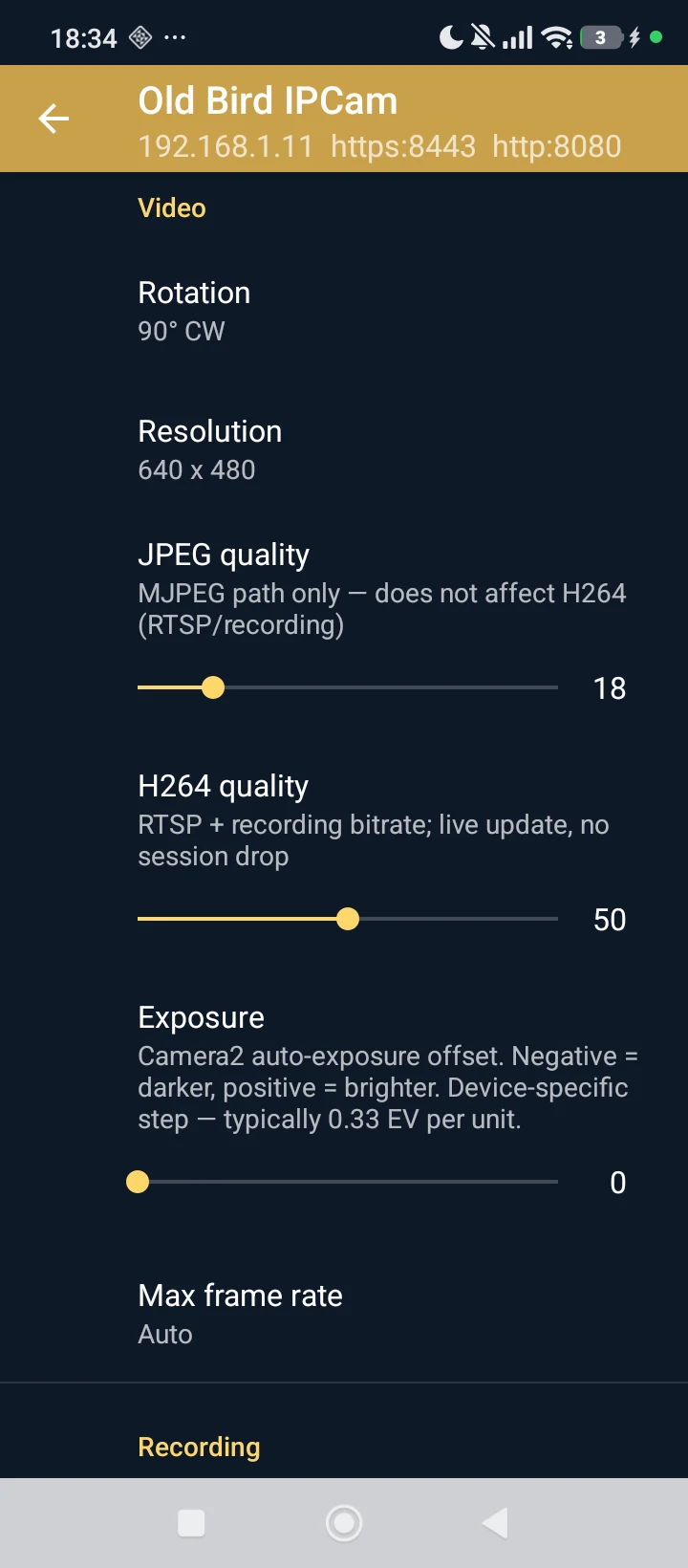 RotationRotates the captured image, for a phone mounted sideways or upside down.
ResolutionCapture size. The main driver of bandwidth, battery and heat.
JPEG qualityCompression for the browser preview stream.
H264 qualityBitrate for recordings, RTSP and WebRTC.
ExposureExposure compensation, for backlit or very bright scenes.
Max frame rateFrame-rate ceiling. Lower it to cut heat and battery drain.
RotationRotates the captured image, for a phone mounted sideways or upside down.
ResolutionCapture size. The main driver of bandwidth, battery and heat.
JPEG qualityCompression for the browser preview stream.
H264 qualityBitrate for recordings, RTSP and WebRTC.
ExposureExposure compensation, for backlit or very bright scenes.
Max frame rateFrame-rate ceiling. Lower it to cut heat and battery drain.
Settings — video.
Backup
Where finished recordings go. WebDAV is free; Google Drive is part of Pro.
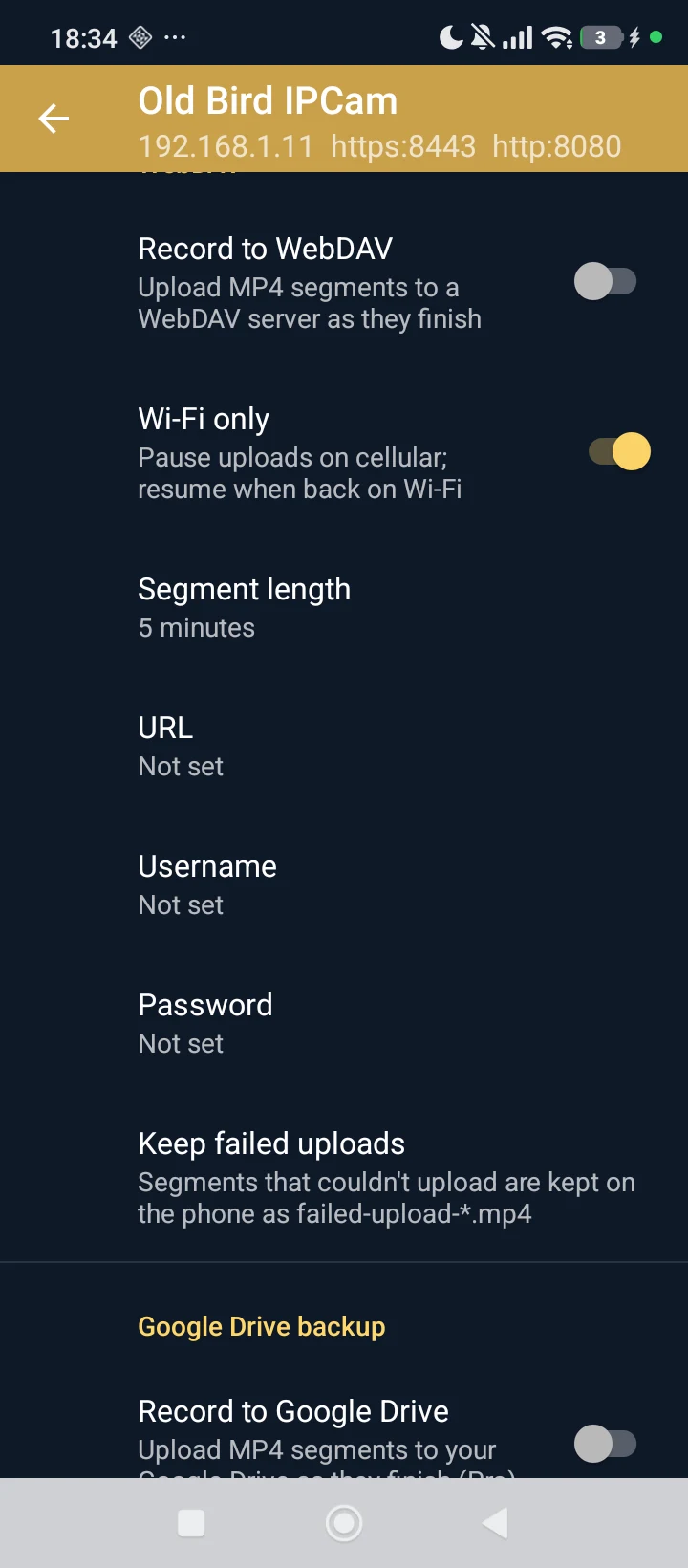 Record to WebDAVUploads finished segments to your own server. Free, and the video never passes through us.
Wi-Fi onlyHolds uploads until Wi-Fi is available so nothing uses mobile data.
Segment lengthHow long each recorded file is before it is closed and uploaded.
URLYour WebDAV collection URL.
UsernameUsername for your WebDAV server.
Viewer credentialsThe HTTPS, RTSP and ONVIF username/password pair. Secure values are generated by default; you can now set both yourself.
Keep failed uploadsHow many failed uploads to retain on the phone for retry.
Record to Google DrivePro feature. Backs segments up to your Google Drive instead of a server you run.
Record to WebDAVUploads finished segments to your own server. Free, and the video never passes through us.
Wi-Fi onlyHolds uploads until Wi-Fi is available so nothing uses mobile data.
Segment lengthHow long each recorded file is before it is closed and uploaded.
URLYour WebDAV collection URL.
UsernameUsername for your WebDAV server.
Viewer credentialsThe HTTPS, RTSP and ONVIF username/password pair. Secure values are generated by default; you can now set both yourself.
Keep failed uploadsHow many failed uploads to retain on the phone for retry.
Record to Google DrivePro feature. Backs segments up to your Google Drive instead of a server you run.
Settings — backup.
Motion
Watch for movement instead of recording around the clock.
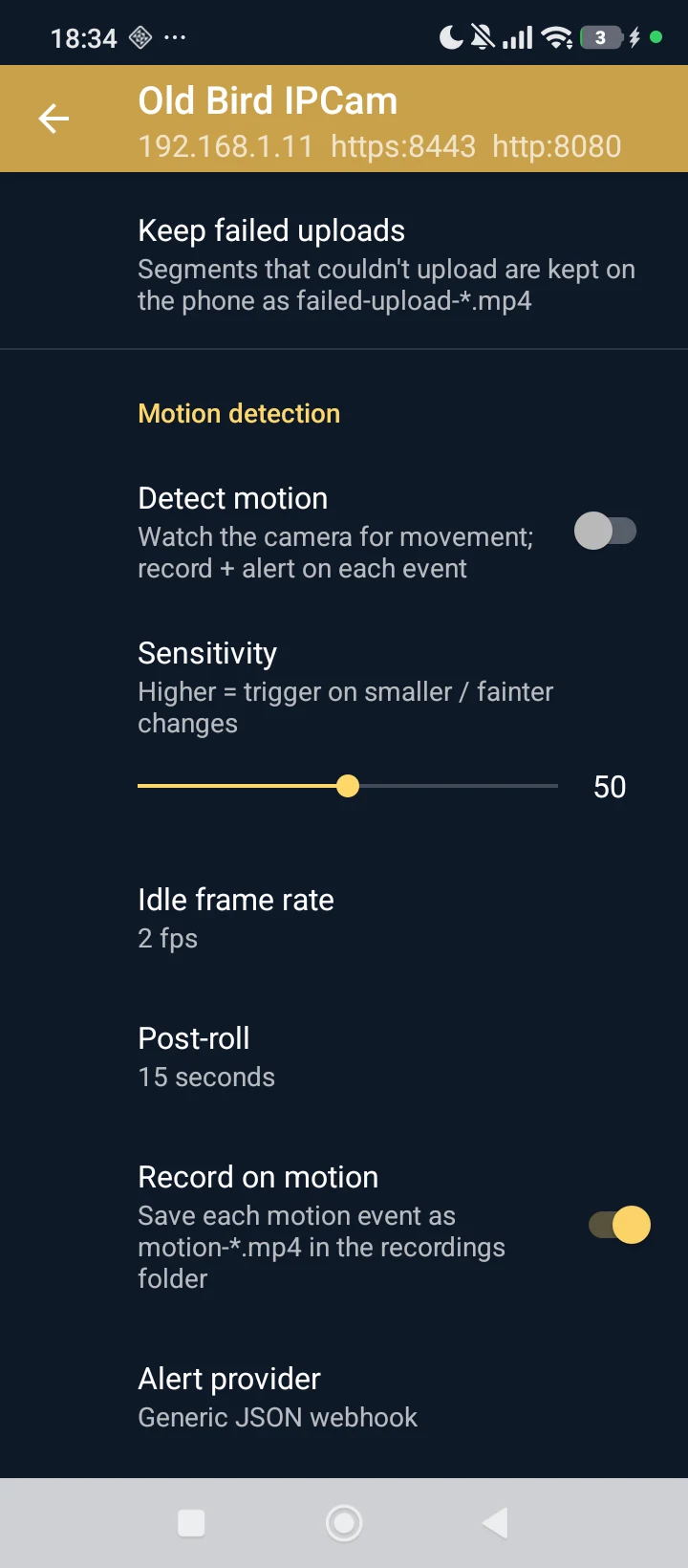 Keep failed uploadsHow many failed uploads to retain on the phone for retry.
Detect motionWatches for movement and, when it sees some, raises the frame rate, optionally records a clip, and fires a webhook.
SensitivityHow much change counts as motion. Raise it if passing cars or shadows trigger events.
Idle frame rateFrame rate while nothing is happening. Low values here are why motion mode is far easier on the battery than recording continuously.
Post-rollHow long recording continues after the last movement, so a clip does not cut off mid-event.
Record on motionSaves a clip for each motion event rather than only sending an alert.
Alert providerWhere alerts go — a plain webhook, or a preset for ntfy, Slack, Discord or Telegram.
Keep failed uploadsHow many failed uploads to retain on the phone for retry.
Detect motionWatches for movement and, when it sees some, raises the frame rate, optionally records a clip, and fires a webhook.
SensitivityHow much change counts as motion. Raise it if passing cars or shadows trigger events.
Idle frame rateFrame rate while nothing is happening. Low values here are why motion mode is far easier on the battery than recording continuously.
Post-rollHow long recording continues after the last movement, so a clip does not cut off mid-event.
Record on motionSaves a clip for each motion event rather than only sending an alert.
Alert providerWhere alerts go — a plain webhook, or a preset for ntfy, Slack, Discord or Telegram.
Settings — motion.
Network
RTSP server publishes H.264 and AAC for VLC, ffplay, or an NVR. ONVIF (Profile S) advertises the camera to software that discovers cameras automatically. Their adjacent port controls choose where each service listens.
Remote access and account
The Remote access (outside your network) group keeps the three required controls together: Subscription, Google account, and Off-LAN viewing. The same group links to the camera portal, privacy policy, and immediate cloud-data deletion. The exact off-LAN sequence is below.
Free and Pro
Watching on your own network, recording to the phone, motion detection, RTSP, ONVIF and WebDAV backup are all free and unlimited. Pro adds two things: viewing and administering your cameras from outside your network, and backup to Google Drive.
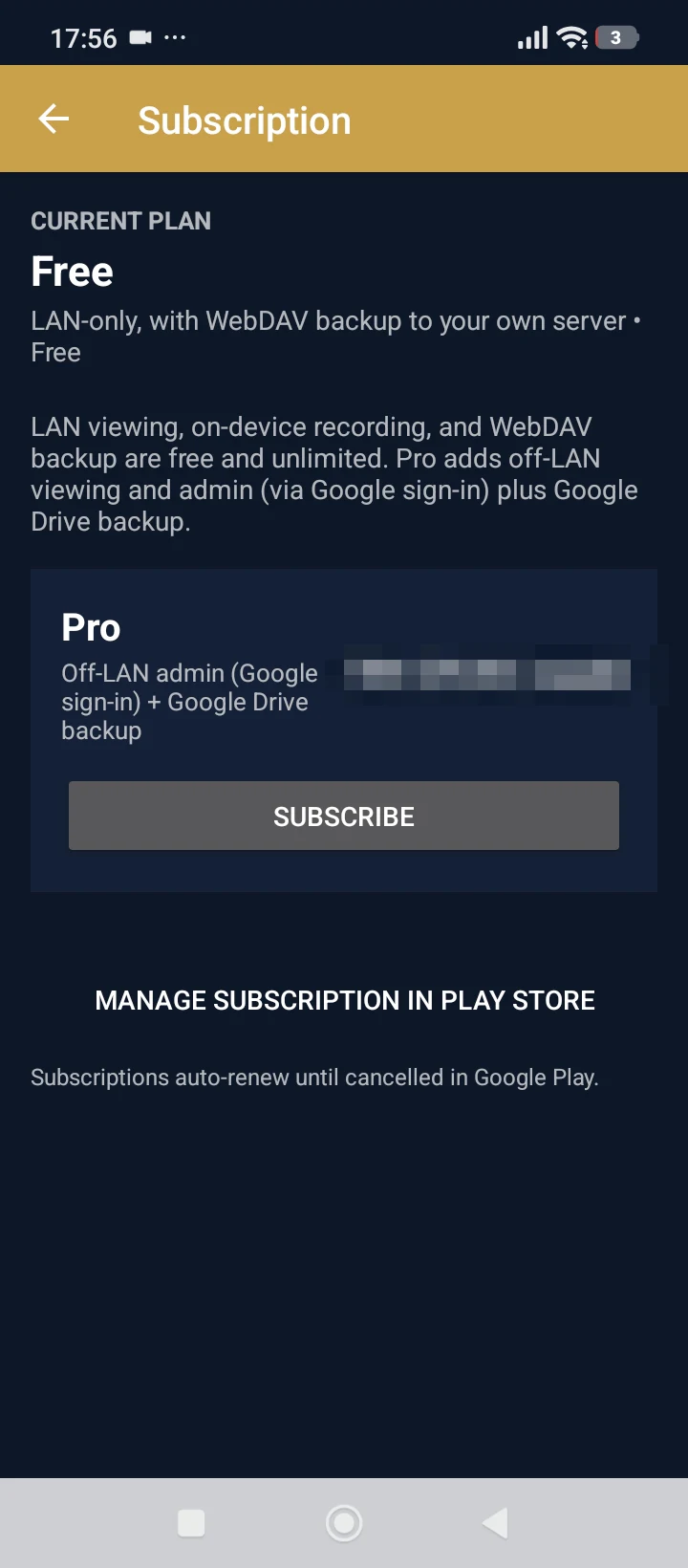 SUBSCRIBEStarts the Google Play subscription flow for Pro. Billing is handled entirely by Play — we never see a card number.
MANAGE SUBSCRIPTION IN PLAY STOREOpens Play, where you can change or cancel the subscription. Cancelling leaves you on Free with LAN viewing, on-device recording and WebDAV backup intact.
SUBSCRIBEStarts the Google Play subscription flow for Pro. Billing is handled entirely by Play — we never see a card number.
MANAGE SUBSCRIPTION IN PLAY STOREOpens Play, where you can change or cancel the subscription. Cancelling leaves you on Free with LAN viewing, on-device recording and WebDAV backup intact.
The subscription screen. Pricing is set by Google Play in your local currency, so the amount shown here is blurred.
Watching from outside your network
On your own Wi-Fi nothing extra is needed — open the camera's address and you are watching. Reaching it from elsewhere requires three steps, all grouped in Settings under Remote access (outside your network):
- Subscribe to Pro. Tap Subscription.
- Sign in with Google. Tap Google account and use the same account you will sign in with in the browser.
- Turn on Off-LAN viewing. This registers the camera to your account. In version 0.1.11 and newer, a signed-out phone starts Google sign-in here and the switch remains off if you cancel.
Then open relay.oldbird.app and sign in with that same Google account. The camera appears within a minute or two — it is registered when the phone next reconnects, not the instant you flip the switch.
Seeing “No cameras are registered for this account”? One of the three above is missing. Most often it is the third: a Free account, or a signed-out phone, deliberately registers nothing at all — the phone never uploads a camera record unless all three conditions hold.
Keeping the phone alive
A phone recording continuously will get warm and drain quickly. Three things help more than anything else:
- Lower the frame rate. It matters more than resolution for both heat and battery.
- Use motion detection instead of continuous recording. The camera idles at a low frame rate and only speeds up when something moves.
- Keep it on a charger. A phone doing this job full time is not running on battery for long.
Old Bird also closes the camera a few minutes after the last viewer leaves. That is deliberate: on some phones the system camera service leaks memory while capturing, and closing it periodically is what keeps a device stable over weeks. If you run motion detection or record around the clock, the camera stays open by necessity, and an occasional reboot is worth scheduling.